

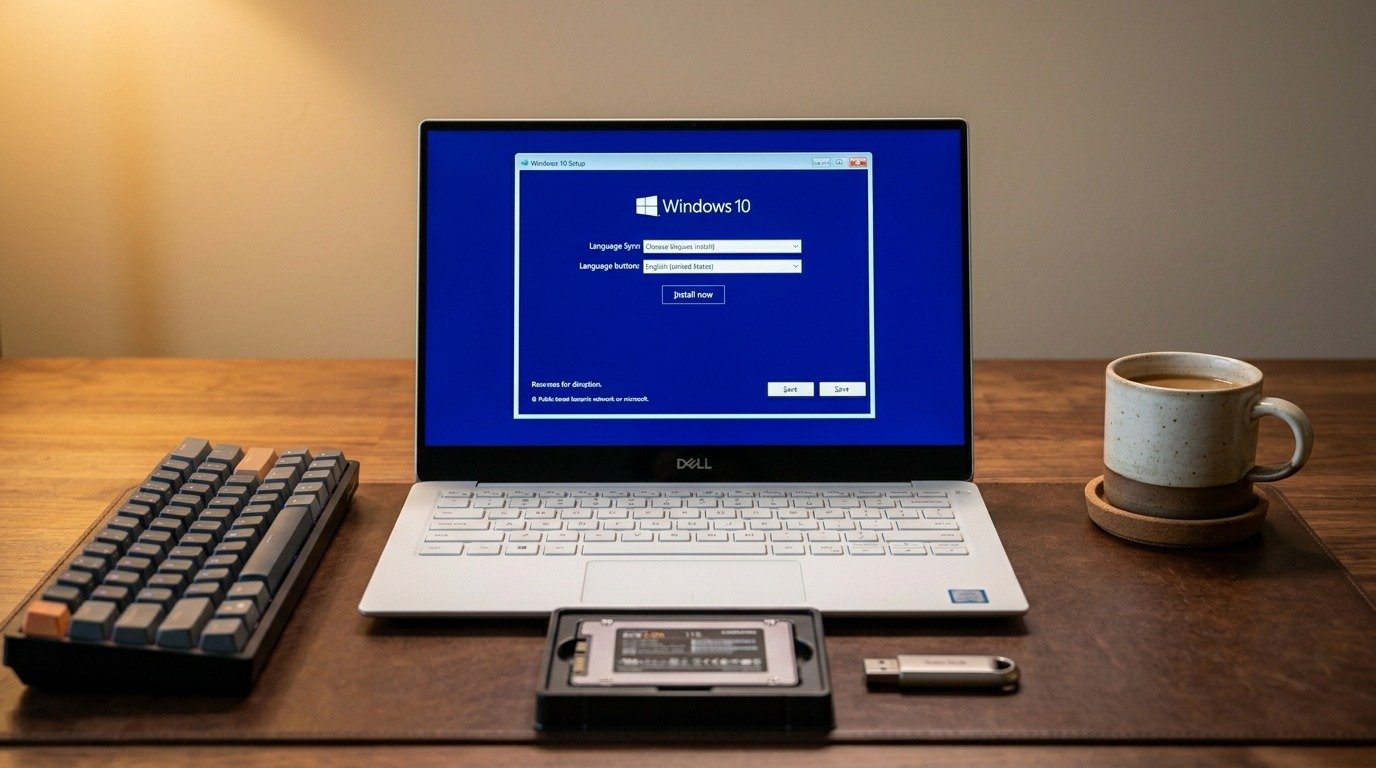
How to install Windows 10 on a new hard drive remains a practical skill even in 2026. Many developers, designers, and power users still rely on Windows 10 machines for compatibility with older tools, specific software, or hardware.
A clean installation on fresh storage delivers optimal performance and eliminates accumulated clutter. This comprehensive guide walks you through every stage safely and efficiently, whether upgrading a desktop, replacing a failed drive, or building a new system.
Why Perform a Clean Install on New Hardware?
New hard drives (HDDs or SSDs) arrive unformatted. Installing Windows 10 directly creates the proper partitions, boot loader, and system files without leftover data from previous setups.
Benefits include:
- Faster boot times and application loading, especially with NVMe or SATA SSDs.
- Elimination of bloatware, registry issues, or corrupted files.
- Better control over drivers and updates.
- Improved security baseline on a fresh system.
Even though Microsoft ended mainstream support for Windows 10 on October 14, 2025, many users continue with it for legacy software. Extended Security Updates (ESU) provide critical patches until October 13, 2026.
Prerequisites and Safety First
Before starting:
- Confirm your new drive is physically installed correctly (SATA/NVMe cable and power connected).
- Have a separate working computer to create installation media.
- Prepare a USB flash drive of at least 8 GB.
- Note your Windows 10 product key (or plan to activate later).
- Back up all important data from any existing drives.
Safety tip: Unplug other internal drives during installation to prevent accidental formatting. This is especially important if they contain critical project files or code repositories.
For the latest official details on Windows 10 support, refer to Microsoft’s end-of-support page.
Understanding Hardware Compatibility
Modern motherboards support both UEFI and legacy BIOS modes. Most new builds use UEFI with GPT partitioning for better performance and security features.
Check your motherboard manual for supported storage interfaces. NVMe SSDs offer the fastest speeds but require compatible slots and sometimes specific BIOS settings.
Step 1: Creating Reliable Bootable Installation Media
The easiest method uses Microsoft’s Media Creation Tool.
- On a working Windows PC, visit the official Microsoft Windows 10 download page.
- Download and launch the Media Creation Tool.
- Select “Create installation media for another PC.”
- Choose your preferred language, Windows 10 edition (Home or Pro), and architecture (64-bit).
- Select USB flash drive and let the tool handle the rest.
This process downloads the latest available Windows 10 ISO and burns it to the USB. Expect 20-60 minutes depending on connection speed.
Alternative with Rufus (Recommended for Advanced Users):
- Download the Windows 10 ISO directly from Microsoft.
- Use the free Rufus tool to create the bootable USB.
- In Rufus, select GPT partition scheme for UEFI systems and NTFS file system.
- Enable “Extend Windows 10 Installation” if needed for custom configurations.
Rufus gives more flexibility, such as disabling Secure Boot requirements temporarily.
[Image Placeholder: Screenshot of Media Creation Tool in action]
Step 2: Installing and Preparing the New Drive
Power off your target PC completely. Open the case and securely mount the new drive.
- For 2.5″ or 3.5″ drives, use appropriate screws and brackets.
- Connect SATA data cable to a motherboard port and SATA power from the PSU.
- For M.2 NVMe SSDs, insert into the slot at the correct angle and secure with the screw.
After hardware installation, power on the PC briefly to confirm detection in BIOS (without booting into an OS yet).
If the drive is not detected:
- Check cable connections.
- Verify the slot is enabled in BIOS.
- Update motherboard BIOS to the latest version from the manufacturer’s site for better storage compatibility.
Step 3: Configuring BIOS/UEFI Settings
Restart and enter BIOS setup (common keys: Delete, F2, F10, or F12 during boot).
Key settings to adjust:
- Boot mode: Set to UEFI (recommended) or Legacy if needed for older hardware.
- Secure Boot: Disable temporarily during installation.
- Boot order: Prioritize the USB drive first.
- SATA Mode: Set to AHCI (not RAID, unless using specific RAID arrays).
- Fast Boot: Disable for clearer installation options.
Save changes (usually F10) and exit. The system should now boot from the USB.
[Image Placeholder: Annotated BIOS/UEFI boot priority screen]
Step 4: The Windows 10 Installation Process
The setup screen loads. Follow these detailed steps:
- Select language, time format, and keyboard layout, then click Next.
- Click “Install now.”
- Enter your product key or click “I don’t have a product key” to continue (activate later).
- Accept the license terms.
- Choose “Custom: Install Windows only (advanced).”
- In the drive selection screen, locate your new drive (shown as unallocated space).
- Select it and click “Next.” Windows automatically creates system, recovery, and main partitions.
- The installation copies files, expands them, and installs features. Multiple automatic restarts occur.
This phase usually takes 10-40 minutes.
Advanced Partitioning Options: During setup, you can use Shift + F10 to open Command Prompt and use diskpart commands for manual control:
- list disk
- select disk X (replace X with your drive number)
- clean
- convert gpt
- create partition primary
Use these carefully only if the automatic process fails.
For more troubleshooting visuals and alternatives, see this detailed resource: How to Install Windows 10 on a New Hard Drive.
Step 5: Post-Installation Setup and Configuration
After the final restart:
- Choose your region and keyboard.
- Connect to Wi-Fi or wired network.
- Set up a Microsoft account or local account (local recommended for privacy-focused developers).
- Configure privacy settings — review telemetry and diagnostic options.
- Let Windows install updates and drivers automatically.
Driver Installation Best Practices:
- Visit your motherboard or PC manufacturer’s website and download the latest chipset, LAN, storage, and graphics drivers.
- Install in this order: chipset first, then storage, LAN, and graphics.
- Use Device Manager to check for any yellow exclamation marks.
[Image Placeholder: Windows 11/10 OOBE setup screens comparison]
Activating and Verifying Windows 10
Go to Settings > Update & Security > Activation.
- Digital license linked to your Microsoft account often activates automatically.
- Enter your 25-character product key if prompted.
- For retail licenses, you can transfer them between machines.
If activation fails, use the troubleshooter or contact Microsoft support with proof of purchase.
Optimizing Performance After Installation
To get the most from your new drive:
For SSDs:
- Enable TRIM (usually automatic).
- Disable unnecessary startup programs.
- Use high-performance power plan.
General Tips:
- Update Windows fully, including any available ESU patches.
- Install only necessary software.
- Create a system image backup using built-in tools or third-party solutions like Macrium Reflect.
- Configure Windows Defender and basic firewall rules.
Benchmark your new setup with tools like CrystalDiskMark for storage speeds and UserBenchmark for overall performance.
Troubleshooting Common Installation Issues
Drive Not Detected in Installer:
- Load storage drivers from a second USB (download from manufacturer).
- Change SATA mode in BIOS.
- Ensure the drive is initialized (GPT for UEFI).
“Windows Cannot Be Installed to This Disk” Error:
- Convert disk to GPT using diskpart.
- Disable Secure Boot.
Boot Loops or Blue Screens:
- Disconnect all other drives.
- Check RAM with MemTest86.
- Verify PSU provides stable power.
No Network After Install:
- Download drivers on another machine and transfer via USB.
Activation Problems:
- Run activation troubleshooter.
- Ensure correct edition matches your key.
Performance Issues:
- Check for firmware updates on the drive itself (e.g., Samsung Magician for Samsung SSDs, Crucial Storage Executive for Crucial).
Migrating Data and Applications
After a stable installation:
- Reconnect your old drive as secondary storage.
- Copy documents, code projects, and media files.
- Reinstall applications from official sources rather than copying program files.
- Export/import browser bookmarks and settings.
For developers: Re-clone Git repositories and restore IDE configurations (VS Code, Visual Studio, etc.).
Security Considerations in 2026
Since mainstream support ended, prioritize:
- Enrolling in the Windows 10 ESU program for continued patches (paid for consumers).
- Using strong antivirus alongside Windows Defender.
- Keeping third-party software updated.
- Practicing safe browsing and using password managers.
- Considering virtualization (e.g., running legacy apps in VMs) for extra isolation.
Advanced Topics: Dual Boot and Virtualization
Want to keep Windows 10 alongside another OS?
- Install Windows 10 first, then install Linux (e.g., Ubuntu) which usually detects and adds to the bootloader.
- Or use a hypervisor like VirtualBox or Hyper-V for testing environments.
Hardware-Specific Considerations
Desktops vs Laptops: Laptops may require specific recovery key combinations or have limited drive bays. Check your model’s service manual.
Building a New PC: Ensure motherboard BIOS is updated before installing the OS for best compatibility with new CPUs and chipsets.
Comparison: Clean Install vs Cloning
| Aspect | Clean Install | Cloning Old Drive |
| Performance | Excellent (no bloat) | Good (but may carry issues) |
| Time Required | 1-2 hours | 30-60 minutes |
| Data Preservation | Manual copy needed | Automatic |
| Error Risk | Low if careful | Higher if old drive failing |
| Recommended For | New drives / fresh starts | Quick migration |
Clean installs are generally superior for new hardware.
Best Tools and Resources
- Microsoft Media Creation Tool (official)
- Rufus (bootable media)
- CrystalDiskInfo (drive health)
- HWMonitor or Core Temp (temperatures)
- Official driver sites from Intel, AMD, NVIDIA, motherboard makers
For an even more visual walkthrough with additional screenshots, check this excellent guide: How to Install Windows 10 on a New Hard Drive.
FAQ
- Can I install Windows 10 without a product key? Yes. The installation completes, but you’ll have watermarks and some feature restrictions until activated.
- How long does the entire process take? Typically 45-120 minutes, plus time for updates and drivers.
- Will this work on a new SSD? Absolutely. SSDs are preferred and the process is identical.
- What if my PC won’t boot from USB? Double-check BIOS boot order, try different USB ports (rear ports preferred), or recreate the media.
- Is Windows 10 still viable in mid-2026? Yes, with ESU enabled for security. Plan an eventual migration to Windows 11 or Linux for long-term support.
- How do I partition the drive during install? Windows handles it automatically in most cases. Advanced users can use diskpart for custom sizes.
- Can I install directly from an ISO without USB? Possible with tools like Ventoy or mounting ISO in certain scenarios, but USB is most reliable.
- What about Windows 11 instead? If your hardware meets TPM 2.0 and Secure Boot requirements, consider upgrading for continued free support.
Conclusion
You now have a complete roadmap for how to install Windows 10 on a new hard drive. Follow the steps methodically, prepare your hardware and media carefully, and you’ll enjoy a clean, performant system.
Remember to stay on top of available security updates and back up regularly. Whether you’re a developer setting up a coding rig or a user refreshing an older machine, this process gives you full control.
Take your time with BIOS configuration and drive selection — these are the most critical points. Once running smoothly, explore further optimizations tailored to your workflow.
Good luck with your installation! If you encounter specific errors, document them (screenshots help) and search targeted fixes using your exact hardware details.
